There's always that moment when your Windows PC starts dragging and you realize your drive is full. You open File Explorer, check your folders, and still can't find what's taking up all that space. That's where WinDirStat steps in. It's simple, free, and incredibly effective at showing you exactly where your storage has gone. No gimmicks, no confusion—just clear, visual data that turns a messy disk into something you can finally understand and control. It's practical, reliable, and still one of the best storage tools around.
WinDirStat—short for Windows Directory Statistics—has been around for years, and it’s one of those rare tools that still matters. Its strength lies in focus: it does one job, and it does it well. When you launch it, the app scans your drives or specific folders and lays out a detailed picture of your file system. You’ll see a directory list ranked by size and a vibrant visual map that represents every file as a colored rectangle. The larger the block, the bigger the file.
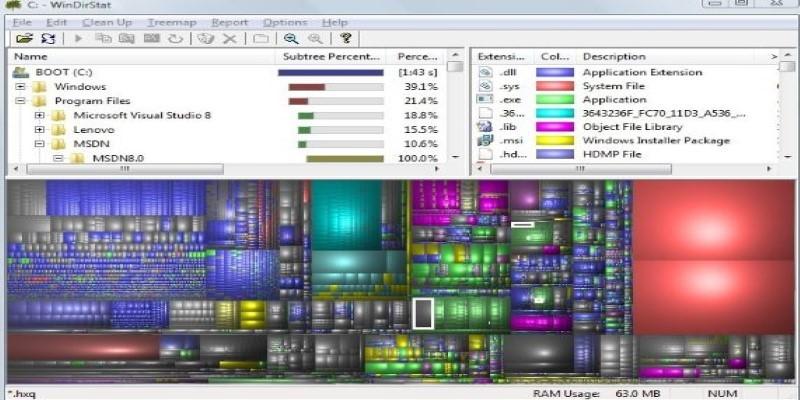
This visual approach changes how people think about disk space. Instead of chasing folders blindly, you can see instantly where your space has gone. Maybe it’s that forgotten movie file, a collection of zipped backups, or a hidden temp folder. Whatever it is, WinDirStat brings it to the surface. It’s straightforward, visual, and refreshingly honest about how storage is being used. Even with modern cleanup apps everywhere, nothing matches this level of transparency.
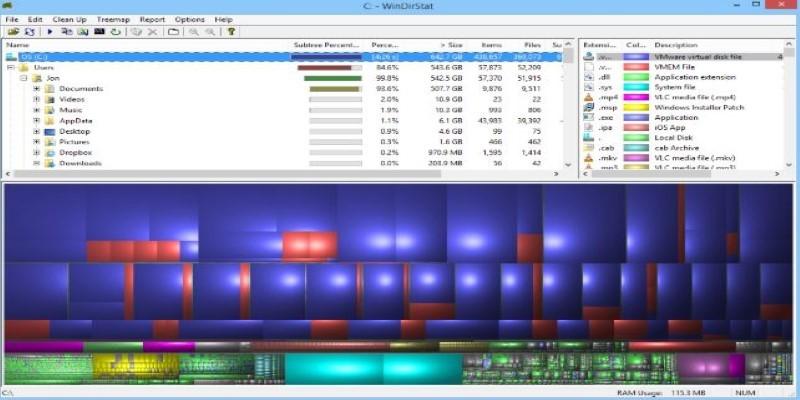
At first glance, the interface feels old-fashioned, but it’s clean once you know where to look. The top panel shows folders sorted by size, making it clear which ones dominate your drive. The middle area lists file extensions—so you can quickly see if videos, archives, or images are the biggest culprits. The bottom section is the famous treemap, the colorful grid that represents your data visually. Each color corresponds to a file type, and every rectangle’s size matches the file’s footprint.
The treemap may seem overwhelming at first, but it’s one of the most intuitive designs in any utility. Hovering over a block highlights its location; clicking it opens the file or its folder. You get total control without cluttered menus or unnecessary warnings. Right-clicking gives you practical options like deleting a file or opening it directly in File Explorer.
Scanning speed depends on the size of your drive, but WinDirStat is thorough rather than fast. Watching it index thousands of files can feel oddly satisfying, as lines of folder names flash by. When it’s done, you have an organized snapshot of your disk—accurate to the byte. It can scan local drives, network folders, or external devices like USB drives and SD cards. This makes it handy for managing backups or cleaning up shared drives where old data piles up unnoticed.
WinDirStat keeps its reputation because it solves everyday problems without fuss. When your drive runs low, it quickly reveals the biggest offenders. Maybe your Downloads folder hides years of installers, or your Documents directory contains old video projects. Instead of guessing, you can see it all in one view.
It’s perfect for freeing up space before installing large programs or updates. Gamers often discover massive leftover folders from uninstalled titles. Photographers and designers find that raw images or project files consume more space than expected. WinDirStat turns this confusion into clarity by highlighting exactly what’s responsible.
The tool also comes in handy when preparing a computer for resale or cleanup. You can visually inspect your system to ensure personal files are gone before wiping it. In offices or shared environments, tech staff use it to troubleshoot slow or cluttered machines without diving into endless folders. Its small size and simplicity make it a reliable go-to tool for quick diagnosis.
For those who prefer not to install software, there’s even a portable version. You can carry it on a flash drive, plug it into any PC, and run it instantly. This portability has made it a quiet favorite among IT professionals and hobbyists alike.
Modern cleanup apps often look polished but hide what they’re doing. WinDirStat takes the opposite approach—it shows everything. There’s no automated deletion, no vague “optimization,” and no hidden decisions about what’s important. You get an honest, visual breakdown of your data and the choice of what to remove.
Its simplicity is its biggest strength. The treemap might seem dated, but once you use it, you understand why it hasn’t changed. It works. Each block of color gives you instant feedback about what’s taking up space. Seeing the actual structure of your storage brings a kind of calm order to what used to be guesswork.
The only real drawback is the outdated interface, but it’s a small price for the level of detail you get. There’s no bloat, no background processes, and no ads. It’s the kind of program that does its job quietly and gets out of the way. Many users have kept it on their systems for years because it simply never stops being useful.
WinDirStat remains proof that simplicity lasts. When a tool is built well, it doesn’t need constant updates or redesigns. It just works—and that’s why people still recommend it today.
If your storage feels full and you can’t figure out why, WinDirStat gives you the full picture. It turns your hard drive into something you can see, measure, and manage. The treemap layout and detailed breakdowns remove the mystery of where your data lives. It’s honest, lightweight, and designed to make you the one in control. For anyone tired of guessing what to delete or relying on “smart” cleaners, WinDirStat offers a refreshingly simple answer. It doesn’t fix problems automatically—it helps you fix them intelligently. And that’s what makes it this week’s standout pick.
 TOP
TOP
Get an in-depth look at the new Photoshop iPhone App. We unpack the full feature set, including Generative AI, non-destructive compositing, and seamless Creative Cloud integration for true Mobile Photo Editing
 TOP
TOP
Deciding if upgrading to a paid Dropbox plan is worth the cost? We analyze the features of Dropbox Plus Worth It, including Smart Sync, secure sharing, and advanced file versioning for professionals
 TOP
TOP
Unlock the full potential of YouTube Music. Discover nine hidden features like Smart Downloads, the seamless video toggle, and custom radio builders to transform your listening
 TOP
TOP
Explore the quiet evolution of One UI 8. Discover the refined multitasking, faster AI tools like Audio Eraser, and subtle visual enhancements in the new Samsung software update
 TOP
TOP
Transform your holiday with smart home automations. Create enchanting light shows and Santa sightings that elevate the holiday magic for your kids
 TOP
TOP
How I turned my Boox Palma into a portable word processor for focused, on-the-go writing with minimal distractions
 TOP
TOP
Explore the best gaming laptops of 2025 with high-end graphics, fast refresh rates, and optimized performance for serious play
 TOP
TOP
Discover the best ad blocker tools to improve speed, reduce clutter, and protect your privacy while browsing online
 TOP
TOP
Make your Google Pixel 9a work your way by adjusting key settings that improve performance, layout, and daily use
 TOP
TOP
Boost digital security with 10 practical steps to stay safe online—no need to go offline or give up your digital lifestyle
 TOP
TOP
Discover the best movie showtimes app for iPhone in 2025. Compare features, reviews, and ticket options for your next movie night
 TOP
TOP
Use Android Auto routines to simplify driving. Discover how automation beyond home use improves commutes and road trips