Taking a Google Pixel 9a out of the box is a specific kind of experience. The hardware feels refined, the camera bar looks distinct, and the software is unmistakably Google. But once you power it on, you aren't just met with a blank canvas. To make this device actually work for you, you need to spend the first twenty minutes digging into the menus.
You are turning off the "smart" features that get in the way and enabling the dumb ones that actually save time. By adjusting a few specific Google Pixel 9a settings, you strip away the retail polish and reveal the capable tool underneath.
The display is the primary way you interact with the phone, yet the default logic often handicaps it. The Pixel 9a is equipped with a panel capable of a high refresh rate, but out of the box, the software manages this aggressively to squeeze out extra hours of standby time. You might feel a slight drag when scrolling through a long email or swiping between home screens, a ghost of lag that makes the Tensor processor feel older than it is.
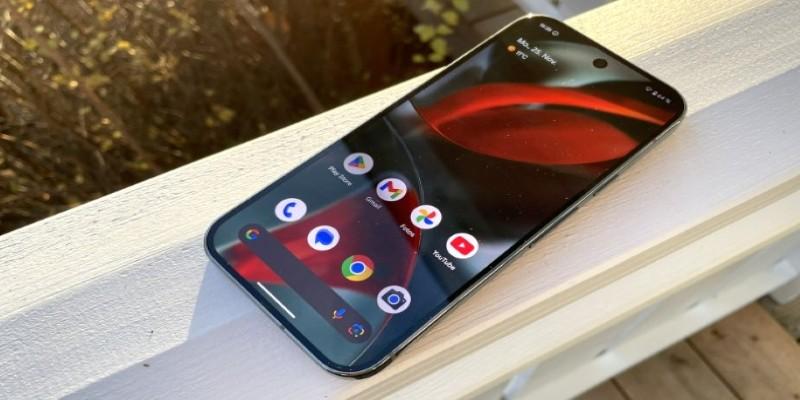
Fix this immediately. Navigate to Settings > Display and enable "Smooth Display." The change is tactile. The interface suddenly adheres to your fingertip, removing that microsecond of friction. It makes the phone feel premium rather than just functional. While you are in that menu, look at the Screen timeout. The factory default is usually thirty seconds.
Battery management also requires a shift in thinking. We have been trained to charge our phones to 100% every night, but maintaining that maximum voltage chemically stresses the battery, leading to faster degradation. Android 15 on the Pixel 9a includes a "Charging Optimization" tool found in Settings > Battery > Battery Health. If you sit at a desk most of the day or charge religiously every night, set the limit to 80%. You sacrifice a small amount of daily capacity now to ensure your phone doesn't need a battery replacement in two years.
Google’s vision for Android is heavy on prediction. The phone tries to guess what you want before you ask for it, often resulting in a cluttered interface. The "At a Glance" widget, permanently pinned to the top of the home screen, is the loudest offender. It turns your home screen into a chaotic dashboard. Long-press the widget, select Customize, and turn off the extraneous toggles. Keep the weather and the date; kill the rest.
The search bar at the bottom of the screen suffers from a similar identity crisis. When you tap it, the Pixel 9a assumes you want to search the web, loading trending news and autocomplete suggestions for things you don't care about. If you type "Dad," you want the phone number, not a definition of the word. Go into the Home Settings and adjust Search your phone to prioritize contacts, apps, and local shortcuts.
Even the messaging experience has been invaded by AI. Google Messages now integrates Gemini, often placing a floating button near the text field or suggesting rewrites for your drafts. When you just want to send a quick text to a friend, this is an obstacle, not a feature. In Messages Settings, find the Gemini section and disable the "Show Gemini button." Communication tools should be invisible conduits, not active participants in your private conversations.
For years, the power button on a phone did one thing: it controlled the power. On the Pixel 9a, holding that button summons the digital assistant. This is a jarring change, especially if your phone freezes and you need to force a restart, or if you are in a quiet meeting and accidental pressure triggers a voice prompt. You can revert this behavior in Settings > System > Gestures. Press & hold the power button to the "Power menu." It restores a critical safety valve to the hardware, ensuring that when you need to turn the phone off, it listens.
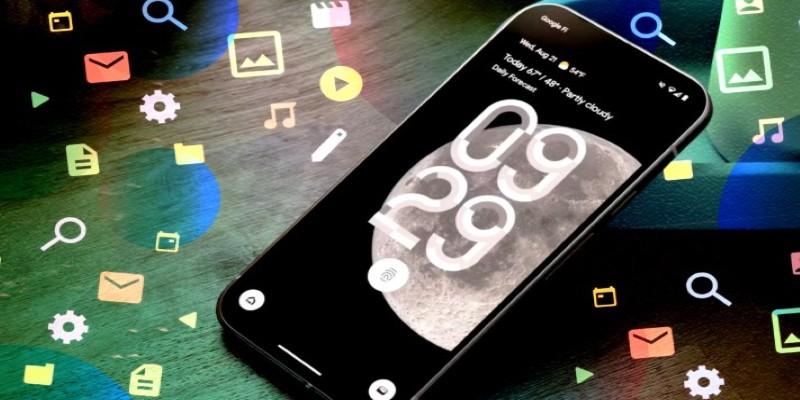
The tactile feedback of the phone—the haptics, also needs tuning. The Pixel 9a has a solid vibration motor, but the default tuning for typing is often too strong and buzzy. In Settings > Sound & vibration > Vibration & haptics, lower the Touch feedback intensity.
The "Back" gesture relies on swiping from the very edge of the screen. A thick case lip can block your thumb, causing missed swipes. In Settings > System > Navigation mode, tap the gear icon for gesture settings.
The back of the Pixel 9a is more than just plastic; it is an unused button. The "Quick Tap" feature uses the internal accelerometer to detect a firm double-tap on the rear casing, but it is off by default. Go to System > Gestures > Quick Tap and enable it. Map this to the flashlight.
Finally, the camera needs to be disciplined. The viewfinder is too clean out of the box. Enable the Grid type to "Golden ratio" or "3x3" in the camera settings immediately. While you are there, check the video settings. To save storage, the phone might default to 1080p recording. If you plan to watch these memories on a 4K TV or a monitor later, 1080p looks soft and muddy. Switch the default to 4K.
Setting up the Pixel 9a isn't just about logging into your accounts; it is about reclaiming the device from the defaults that Google thinks you want. When you smooth out the display, silence the intrusive AI prompts, and map the buttons to functions you actually use, the phone stops fighting you. It stops being a platform for services and starts being a reliable tool that fits into your pocket. These adjustments take only a few minutes, but they pay dividends every time you unlock the screen.
 TOP
TOP
Get an in-depth look at the new Photoshop iPhone App. We unpack the full feature set, including Generative AI, non-destructive compositing, and seamless Creative Cloud integration for true Mobile Photo Editing
 TOP
TOP
Deciding if upgrading to a paid Dropbox plan is worth the cost? We analyze the features of Dropbox Plus Worth It, including Smart Sync, secure sharing, and advanced file versioning for professionals
 TOP
TOP
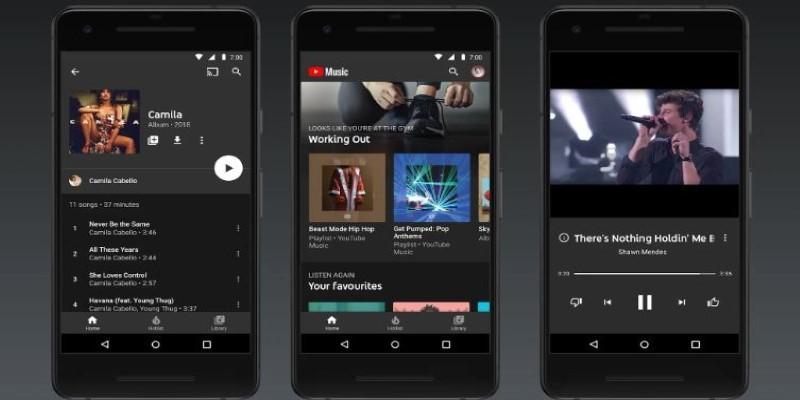
Unlock the full potential of YouTube Music. Discover nine hidden features like Smart Downloads, the seamless video toggle, and custom radio builders to transform your listening
 TOP
TOP
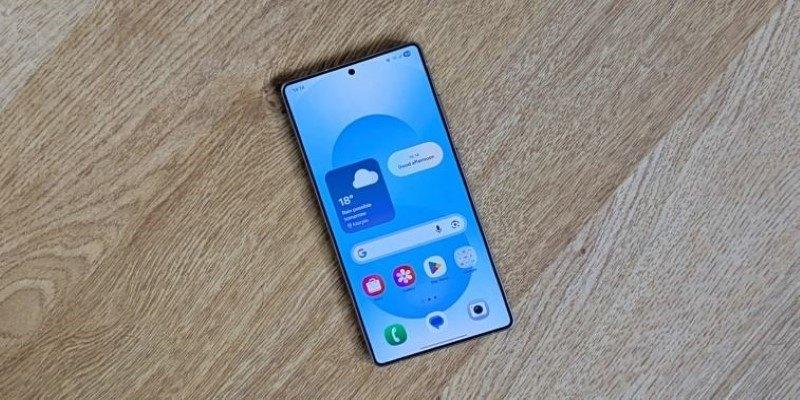
Explore the quiet evolution of One UI 8. Discover the refined multitasking, faster AI tools like Audio Eraser, and subtle visual enhancements in the new Samsung software update
 TOP
TOP
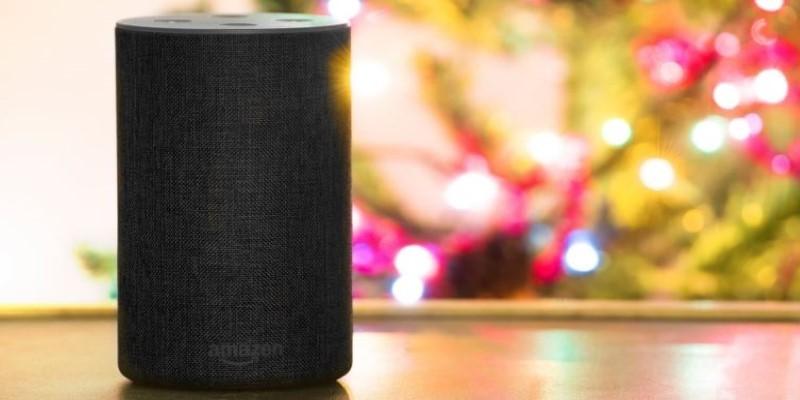
Transform your holiday with smart home automations. Create enchanting light shows and Santa sightings that elevate the holiday magic for your kids
 TOP
TOP
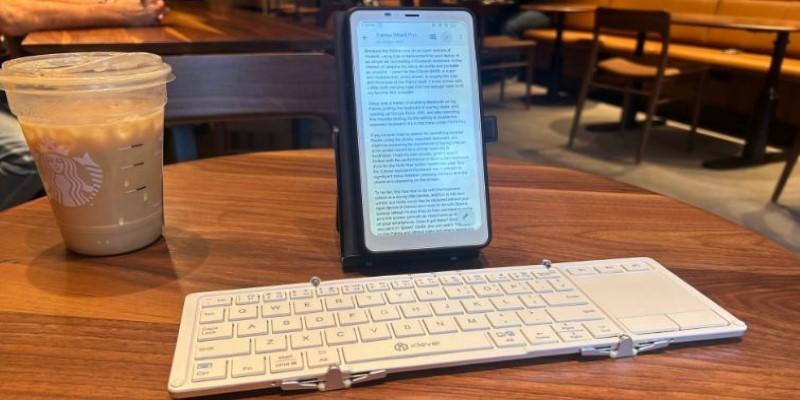
How I turned my Boox Palma into a portable word processor for focused, on-the-go writing with minimal distractions
 TOP
TOP
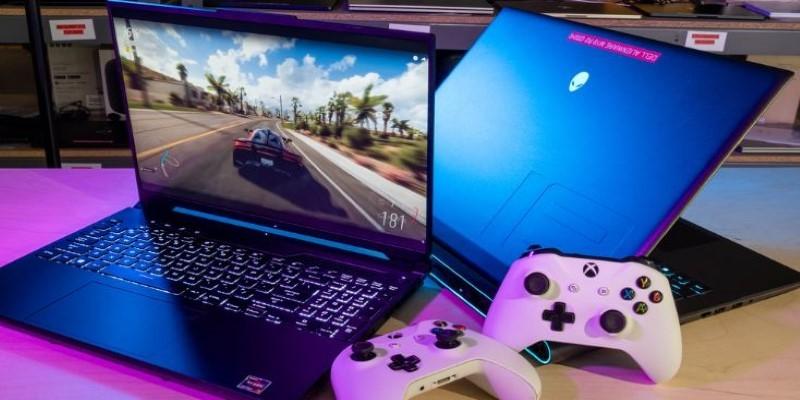
Explore the best gaming laptops of 2025 with high-end graphics, fast refresh rates, and optimized performance for serious play
 TOP
TOP
Discover the best ad blocker tools to improve speed, reduce clutter, and protect your privacy while browsing online
 TOP
TOP
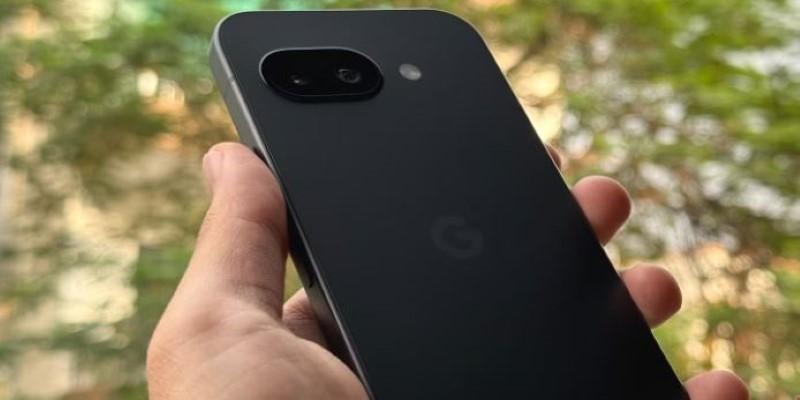
Make your Google Pixel 9a work your way by adjusting key settings that improve performance, layout, and daily use
 TOP
TOP
Boost digital security with 10 practical steps to stay safe online—no need to go offline or give up your digital lifestyle
 TOP
TOP
Discover the best movie showtimes app for iPhone in 2025. Compare features, reviews, and ticket options for your next movie night
 TOP
TOP
Use Android Auto routines to simplify driving. Discover how automation beyond home use improves commutes and road trips