Most people don’t think much about volume controls—until they need them to work better. Maybe you’ve tried lowering one app’s volume without muting everything or wanted to send music to your speakers while keeping a video call in your headphones. Windows doesn’t make that easy.
That’s where EarTrumpet comes in. It’s a free tool that quietly fixes what the built-in mixer gets wrong. With EarTrumpet, you get full control over each app’s audio without digging through menus. It looks native, works instantly, and doesn’t get in your way. It’s the kind of upgrade that feels small—until you use it every day.
EarTrumpet isn’t just a fancy volume slider. It replaces or supplements the native Windows sound mixer with something much more useful. When installed, it adds its own icon in the system tray that looks similar to the default speaker icon. But clicking on it opens up a full list of all apps currently using audio. Each app gets its own slider, so you can adjust or mute them independently. This kind of per-app control exists in Windows’ built-in mixer too, but EarTrumpet is faster, smoother, and more intuitive.
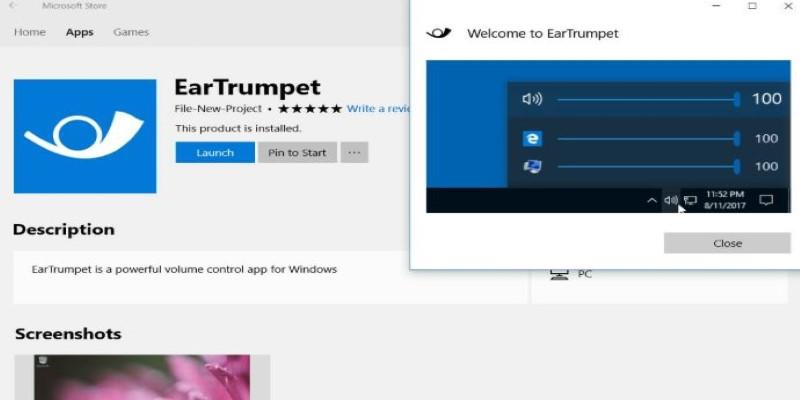
It works seamlessly with the Windows 10 and Windows 11 design, matching the system’s look. The sliders feel fluid, changes are instant, and it doesn’t bog down performance. Unlike older mixers or bloated sound panels, EarTrumpet is lightweight and quietly does its job without needing attention. You get the feeling that it was designed by people who actually use Windows daily and were tired of jumping through hoops to control sound.
EarTrumpet also integrates well with multiple playback devices. If you’re someone who switches between speakers, headphones, or HDMI audio often, you’ll appreciate how it handles output switching. You can assign different apps to different output devices, which isn’t possible through the basic sound settings in Windows. For example, you can route Spotify to your Bluetooth speaker while keeping your browser sound on your main monitor.
One of the biggest draws of EarTrumpet is the way it simplifies things that are usually buried under several clicks. Adjusting individual app volumes becomes a single-step action. The interface lists every app playing audio, and each has a volume bar. If an app isn’t playing sound, it won’t show up — which keeps things clean.
It also supports system-wide hotkeys, so you can adjust volume without even opening the mixer. You can set up shortcuts to control master volume, switch playback devices, or mute apps directly. This becomes really handy if you're running games or full-screen apps and don't want to Alt+Tab every time sound needs tweaking.
Another practical feature is app-specific audio routing. This lets you assign a particular program to always use a specific audio device. It’s the sort of control that advanced users crave and beginners benefit from without realizing it. This is especially useful for streamers or content creators, who might want their voice chat in headphones while gameplay sound runs through speakers.
EarTrumpet doesn’t mess with your system settings or introduce instability. It works alongside existing Windows settings rather than trying to override them. It’s open-source, well-maintained, and regularly updated by a small but active team of developers.
Multitasking in Windows often involves dealing with several sound sources — a browser tab, a Zoom call, background music, maybe a video editor. Without fine-grained control, it’s frustrating to balance everything. You either lower the master volume or keep diving into menus. EarTrumpet makes all of this smoother.
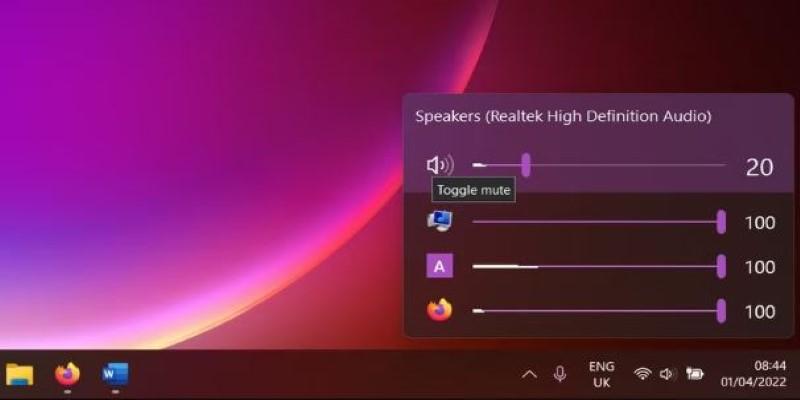
If you’re a remote worker or student juggling calls, music, and videos, it saves time. You can mute just your Slack notifications without affecting your media playback. If you’re gaming, you can drop Discord volume a bit and raise the game’s audio with one hand, without needing to pause anything. For creators, the ability to manage multiple audio channels independently is a massive bonus, especially when paired with external recording or streaming software.
And even if your needs are simple — like keeping music low while watching a video — EarTrumpet handles that with less friction than the built-in mixer. The utility becomes more useful the more you use your PC for different things at once.
Getting started with EarTrumpet is easy. You can find it on the Microsoft Store, and installation takes just a minute. Once installed, it automatically adds itself to your system tray. You can hide the default speaker icon if you want, but both can live side by side. Clicking on the EarTrumpet icon brings up the list of active audio sources with volume sliders for each.
There’s no complex setup. It works right out of the box. The only options you might want to tweak are hotkeys or choosing default output devices for certain apps, and both are accessible through a simple right-click menu.
The interface is sleek and straightforward. You won’t find confusing jargon or cluttered menus. Each app is clearly labeled, and the sliders are responsive. If you’re using multiple screens or audio devices, EarTrumpet remembers your choices and adapts well. It’s not a bloated tool that nags you with updates or adds splashy logos. It just quietly gives you control.
For everyday users, this means less fiddling with settings and more focus on what you’re doing. Whether it’s working, watching, editing, or relaxing, your audio setup doesn’t get in the way.
EarTrumpet isn’t trying to reinvent anything — it just does the job better. It takes the limitations of Windows’ volume system and smooths them out with practical features that feel like they should’ve been there all along. It’s simple enough for anyone to use but offers the kind of flexibility that even demanding users will appreciate. If your current sound setup feels clunky or you’re tired of adjusting volumes through multiple menus, EarTrumpet is worth trying. It stays out of the way when you don’t need it and is right there when you do. This tool makes your sound feel like it’s under your control again — not buried behind layers of menus. That alone makes it a must-have for most Windows users.
 TOP
TOP
Get an in-depth look at the new Photoshop iPhone App. We unpack the full feature set, including Generative AI, non-destructive compositing, and seamless Creative Cloud integration for true Mobile Photo Editing
 TOP
TOP
Deciding if upgrading to a paid Dropbox plan is worth the cost? We analyze the features of Dropbox Plus Worth It, including Smart Sync, secure sharing, and advanced file versioning for professionals
 TOP
TOP
Unlock the full potential of YouTube Music. Discover nine hidden features like Smart Downloads, the seamless video toggle, and custom radio builders to transform your listening
 TOP
TOP
Explore the quiet evolution of One UI 8. Discover the refined multitasking, faster AI tools like Audio Eraser, and subtle visual enhancements in the new Samsung software update
 TOP
TOP
Transform your holiday with smart home automations. Create enchanting light shows and Santa sightings that elevate the holiday magic for your kids
 TOP
TOP
How I turned my Boox Palma into a portable word processor for focused, on-the-go writing with minimal distractions
 TOP
TOP
Explore the best gaming laptops of 2025 with high-end graphics, fast refresh rates, and optimized performance for serious play
 TOP
TOP
Discover the best ad blocker tools to improve speed, reduce clutter, and protect your privacy while browsing online
 TOP
TOP
Make your Google Pixel 9a work your way by adjusting key settings that improve performance, layout, and daily use
 TOP
TOP
Boost digital security with 10 practical steps to stay safe online—no need to go offline or give up your digital lifestyle
 TOP
TOP
Discover the best movie showtimes app for iPhone in 2025. Compare features, reviews, and ticket options for your next movie night
 TOP
TOP
Use Android Auto routines to simplify driving. Discover how automation beyond home use improves commutes and road trips