There’s something personal about the sounds we love—whether it’s a movie quote, a drum hit, or a familiar notification chime. Now, imagine having all of them right at your fingertips on your Mac. A soundboard app for Mac lets you load, organize, and trigger your favorite clips in seconds.
It’s a simple way to make calls, streams, or lessons more engaging without fumbling through files or websites. Instead of relying on someone else’s presets, you can bring your own sound effects and create something that feels entirely yours—clean, fast, and ready whenever inspiration strikes.
A soundboard app for Mac is a lightweight utility that lets you assign custom sound effects, music stingers, or short clips to keyboard keys or buttons. You load your own files, organize them, and then tap a key to play them instantly. It’s flexible, quiet in the background, and designed to fit into creative or professional workflows.
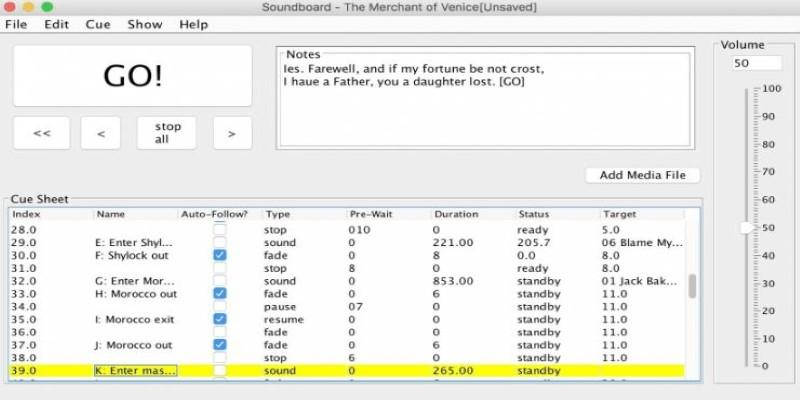
These apps support common audio formats like MP3 and WAV and give you volume control, fade options, looping, and sometimes multi-channel output. Some work directly with video calls or live-streaming platforms like OBS. But the core feature is this: load your own sounds and play them instantly with minimal setup.
It’s not just for entertainment. Teachers use soundboards to keep students engaged. Podcasters use them for intros, stingers, and ad spots. Streamers drop meme clips to react in real time. A soundboard turns everyday setups into more polished and responsive experiences.
Good soundboard apps on Mac focus on speed and simplicity. The sound should play the moment you press the button, without any lag. These tools often use built-in audio routing, or they work well with external tools like Loopback or BlackHole if you need more control.
Let’s say you’re running a stream or recording a podcast. You want to drop in a reaction clip or background audio on the fly. Instead of switching tabs or playing a clip manually, you’ve already got it assigned to a hotkey. You hit the key, and the sound plays instantly—clean and without delay.
For live sessions or remote meetings, a fast soundboard can save time and make your delivery more seamless. No need to edit in sounds later if you can just play them live. It also cuts down on dead air, which matters when your content relies on flow.
Some apps support profiles or tabs so you can switch between sound setups depending on what you're doing. That means you can have one set of sounds for a podcast and another for classroom use. Others allow simultaneous playback of multiple sounds, volume ducking under your voice, or looping music under a voiceover. These features give you more control without needing to tinker mid-session.
The real strength of these apps is the ability to bring your own sound effects. You’re not limited to stock sounds. Whether it's a funny clip from a video, a self-recorded voice line, or a loop you made in GarageBand, it’s yours to use.
You can drag and drop files straight into the app, trim them, and assign them to specific keys. Most tools allow you to label each sound, choose icons, and organize clips into tabs or folders. This makes it easier to remember where everything is when you're in a session.
Being able to build a personal library is what turns a soundboard into a creative tool. If you're a podcaster, you can preload your intro, break music, and outro. If you're teaching online, you can load audio rewards or attention cues. If you’re streaming, a quick tap can trigger a cheer, buzzer, or punchline.
It also keeps things portable. Since the app lives on your Mac, you don’t need any extra gear. You’re not tied to a physical soundboard or external mixer. Your entire setup is just one Mac and your own audio files—simple and efficient.
When choosing a soundboard app for Mac, simplicity is key. Look for something that launches quickly, uses minimal resources, and doesn’t interrupt your workflow. It should let you map sounds to keys easily and play them with zero delay.
You’ll want support for common formats like MP3 or WAV, and a drag-and-drop interface helps speed things up. Other helpful features include volume sliders per sound, fade-in and fade-out, and global hotkeys that work no matter what window you’re in. If you’re using MIDI gear, make sure the app can detect and map your controller too.
Stability matters—especially during live events. Choose an app that runs well with your version of macOS, ideally one that’s built for Apple Silicon if you’re using a newer machine. Apps that include built-in virtual audio drivers can save time and reduce the need for extra software.
If your workflow includes OBS or Zoom, check that the app can route audio cleanly to those platforms. Many apps pair well with tools like Loopback or offer direct output settings for fast routing.
Testing a few options helps. Some apps offer free versions or trials. Others are open-source and community-supported. The best choice depends on how many sounds you use, how often you switch profiles, and how polished you want your workflow to be.
A soundboard app for Mac turns your keyboard into a personal audio control center. It helps you bring your own sound effects into your sessions without hassle. Whether you’re teaching, podcasting, or creating live content, this tool adds a layer of control that feels both simple and powerful. You don’t need expensive gear or complicated software. You just need a way to play the right sound at the right time—on your own terms. With a customizable layout and fast playback, this kind of tool lets you shape your sessions to match your style. No extra clicks, no fuss—just a Mac, your sounds, and a bit more personality in your work.
 TOP
TOP
Get an in-depth look at the new Photoshop iPhone App. We unpack the full feature set, including Generative AI, non-destructive compositing, and seamless Creative Cloud integration for true Mobile Photo Editing
 TOP
TOP
Deciding if upgrading to a paid Dropbox plan is worth the cost? We analyze the features of Dropbox Plus Worth It, including Smart Sync, secure sharing, and advanced file versioning for professionals
 TOP
TOP
Unlock the full potential of YouTube Music. Discover nine hidden features like Smart Downloads, the seamless video toggle, and custom radio builders to transform your listening
 TOP
TOP
Explore the quiet evolution of One UI 8. Discover the refined multitasking, faster AI tools like Audio Eraser, and subtle visual enhancements in the new Samsung software update
 TOP
TOP
Transform your holiday with smart home automations. Create enchanting light shows and Santa sightings that elevate the holiday magic for your kids
 TOP
TOP
How I turned my Boox Palma into a portable word processor for focused, on-the-go writing with minimal distractions
 TOP
TOP
Explore the best gaming laptops of 2025 with high-end graphics, fast refresh rates, and optimized performance for serious play
 TOP
TOP
Discover the best ad blocker tools to improve speed, reduce clutter, and protect your privacy while browsing online
 TOP
TOP
Make your Google Pixel 9a work your way by adjusting key settings that improve performance, layout, and daily use
 TOP
TOP
Boost digital security with 10 practical steps to stay safe online—no need to go offline or give up your digital lifestyle
 TOP
TOP
Discover the best movie showtimes app for iPhone in 2025. Compare features, reviews, and ticket options for your next movie night
 TOP
TOP
Use Android Auto routines to simplify driving. Discover how automation beyond home use improves commutes and road trips